
How to redirect a domain without buying hosting
Redirect one domain to another website or URL over HTTPS, without buying hosting. See the options, what to keep active, and how to set up DNS.
You need a destination, not another website
Bought a campaign domain, or want an old address to send visitors to your current store? If that domain only needs to redirect visitors to another domain or URL, you do not need to buy website hosting for it. A redirect service receives the request and tells the browser which address to open.
The destination website still needs its own working platform or hosting. Without hosting here means without buying separate website hosting for the domain that only redirects.
What must stay active
| Service | What to keep |
|---|---|
| Domain registration | Keep the domain registered and renewed. |
| DNS | Keep access to the provider that manages its records. |
| HTTPS redirect | Use a service that serves the source domain and manages its certificate. |
| Destination hosting | The final store or website stays where it already works. |
Set up the redirect
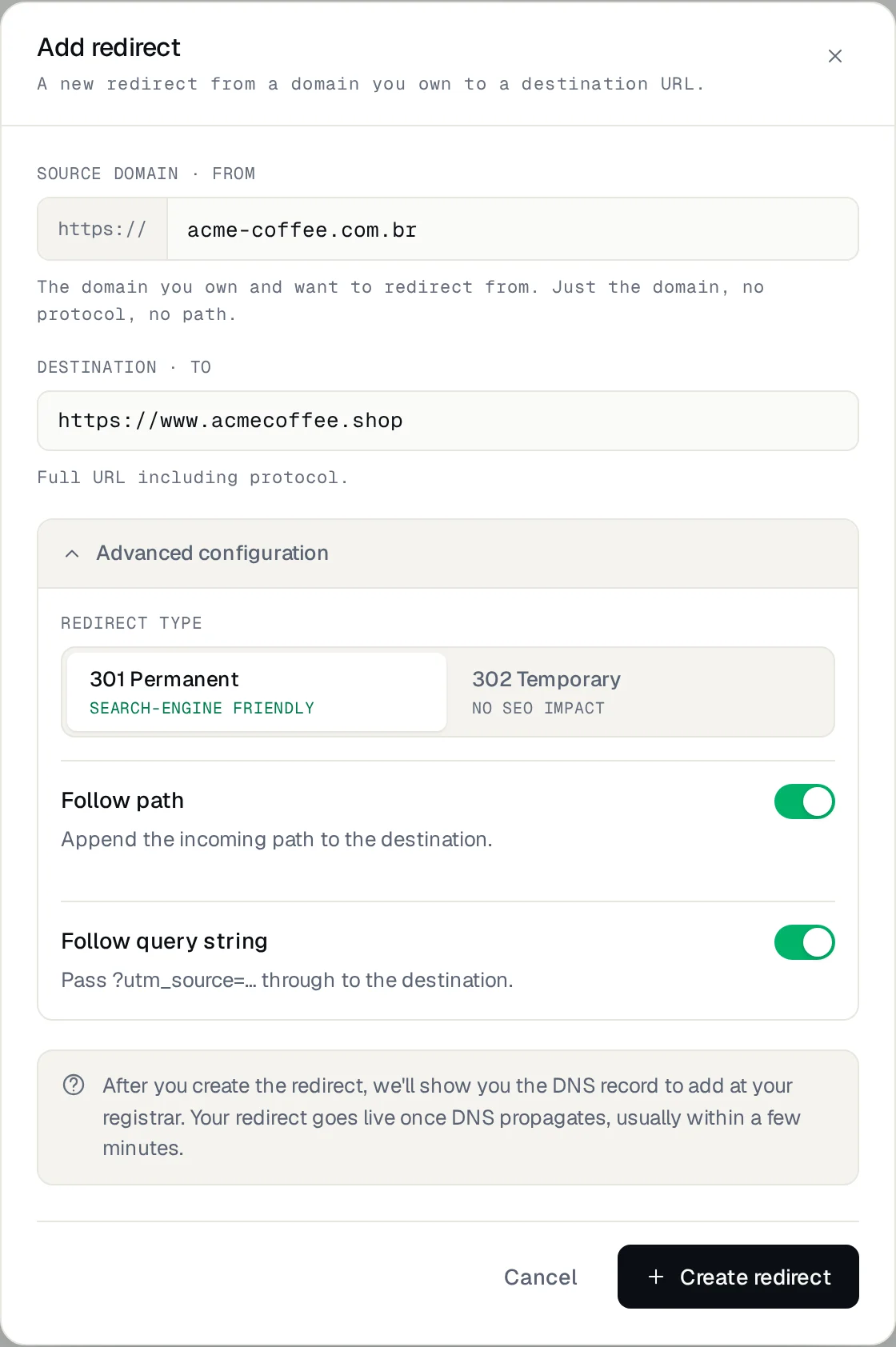
- Open the Redirect-301 dashboard and add a redirect.
- Enter the source domain without https:// or a path. Choose go to another site and enter the full destination URL.
- For a permanent move, choose Yes under Is it a permanent move? (301). For a temporary campaign, choose No (302).
- Review Path and parameters: preserve them when equivalent pages exist at the destination. If a path changed, add a custom path.
- To serve the domain both with and without www, configure them separately. Each uses a plan slot.
Update DNS carefully
At your DNS provider, create the A record using the name and value shown on the redirect page. Use the current dashboard value. Remove conflicting A or AAAA records only for that same name. With Cloudflare, follow the guide and use DNS only.
Before changing a record, check what depends on it. Do not delete the DNS zone or change nameservers without planning a migration. Preserve MX, TXT and records used by email. If email or DNS relies on your old hosting, move those services before cancelling it.
Test before cancelling hosting
Wait for DNS confirmation and certificate issuance. Test HTTPS, HTTP and important paths. Check the final destination and whether parameters arrive as expected. Only then consider cancelling the old hosting, after saving your data and confirming it no longer serves email, DNS or other services.
Frequently asked questions
How do I redirect one domain to another domain or URL?
Add the source domain to a redirect service, point its DNS at the service, and choose the destination URL. The service answers every visit with a redirect, with no server for you to run. That's the step-by-step above.
Can I redirect just one URL to another, not the whole domain?
Yes. Beyond the whole domain, you can create custom paths that send a specific address (like yourdomain.com/promo) to another URL. Handy for campaigns and short links.
Does a CNAME record perform a redirect?
No. DNS resolves names; an HTTP redirect is a response from a web service. A CNAME alone does not send the browser to a URL with a different path.
Do I need to transfer my domain?
You do not need to transfer its registration to use Redirect-301. You need access to edit DNS records for the source address.
What if the domain already has a website?
Changing DNS for that address changes who receives its visits. Confirm that you want to replace the website with a redirect, or choose another source address.
Set up your domain
Start in the dashboard and follow the screens in the configuration guide. To choose a type, read 301 or 302. If the goal is to change domains without losing Google rankings, see How to change your domain without losing SEO.
Keep reading

URL shortener on your own domain: how to create short links
A URL shortener on your own domain: create branded short links with HTTPS and per-link stats, and see how it differs from bit.ly.
Loja Integrada store fails without www? Why HTTPS breaks and how to fix it
Store opens with www, but https://yourstore.com.br shows an error? Why it happens on Loja Integrada and how to fix it for good, without touching the store.
VTEX store without www: how to set up a redirect
Your VTEX store opens with www but fails without it? Learn why and set up an HTTPS redirect while keeping your working store address.
Need help?
Feel free to reach out to us with any questions. We're here to help! Scan the QR code or click the button below to join our WhatsApp group.
Open WhatsApp →