QR codes you can change after printing
A regular QR code is stuck with the link it was printed with. Point it to an address on your own domain instead, and change the destination whenever you want, without reprinting.
The problem with printed QR codes
A regular QR code stores the final link. When the menu changes, the promotion ends or the site moves, every code already printed on menus, packaging, flyers and signs opens the wrong page, or an error. The only fix is to reprint.
The way out is to print a code that points to an address you control, and redirect that address to wherever it needs to go today.
How an editable QR code works
The code holds a short address on your own domain, like acme-coffee.com/menu. That address is a redirect:
Next month, you point /menu to the new menu. The printed code doesn't change. What changes is where /menu goes.
Why your own domain, and not a QR generator site
Many sites create "dynamic" QR codes too, but the code points to their domain. Here's the difference:
| QR generator site | Your domain + Redirect-301 | |
|---|---|---|
| Address in the code | Their domain (qr.example/x7k2) | Your domain (acme-coffee.com/menu) |
| If you stop paying | Codes may stop working or show ads | The domain is yours: point it anywhere and the printed codes keep working |
| How many codes | Often priced per code or per scan | Unlimited QR codes and paths in every plan |
| When someone scans | An unknown address appears | Your brand appears |
Create one in Redirect-301
- Open your redirect and add a custom path, for example
menu, pointing to the current destination. Choose 302 (see the note below). - In QR codes, click Add QR code: give it a label, choose the
/menupath, a color and a format. PNG for screens and documents, SVG for print shops and designers, PDF for a page ready to print. - Download it and scan it with two different phones before sending it to print.
- When the destination changes, edit the custom path. The printed code keeps working.
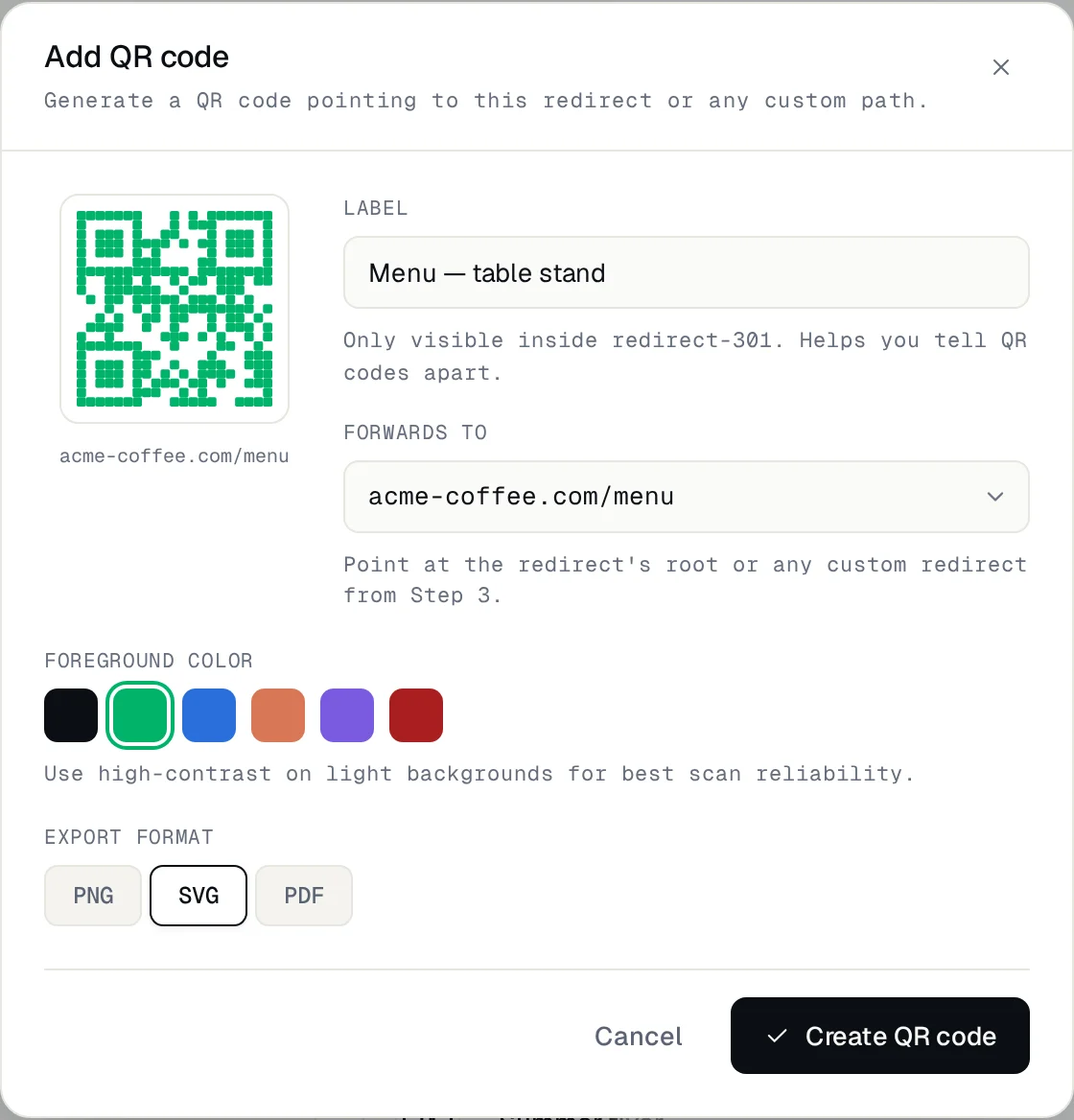
Use 302 on paths whose destination will change. Browsers remember a 301, so a phone that scanned the code before could keep opening the old page after you change it.
Count the scans
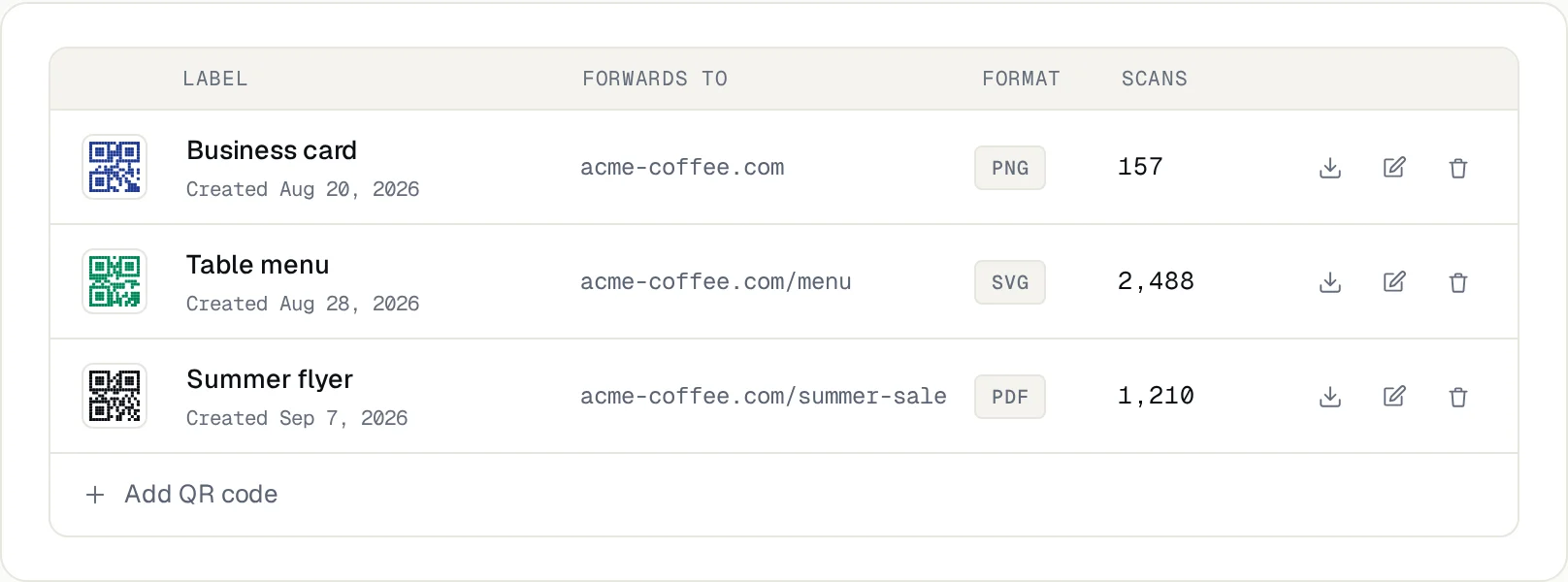
Every downloaded code carries a small marker that we remove before redirecting, so you see how many times each code was scanned, and your destination never sees the marker.
A useful trick: create one code per placement (the table tent, the window poster, the flyer), all pointing to the same path. You'll know which one brings the most scans.
Printing tips
Where to use them
Frequently asked questions
Can I change where a printed QR code goes?
Yes. Edit the custom path the code points to (or the default redirect, for a code that opens your domain). The printed image always opens the same path; what you change is where that path goes.
Can I reuse QR codes I already printed with another site?
No. Those codes hold the other site's address. Editable codes start with the next print.
How do I retire a code?
Point its path to a useful page, like your homepage or the current catalog, instead of deleting it. Deleting a custom path also deletes its QR codes, and the people who still scan them won't land where you want.
Is there a limit?
No. QR codes and custom paths are unlimited in every plan. Each domain uses one slot of your plan. All the details are in the configuration guide.
Need help?
Feel free to reach out to us with any questions. We're here to help! Scan the QR code or click the button below to join our WhatsApp group.
Open WhatsApp →