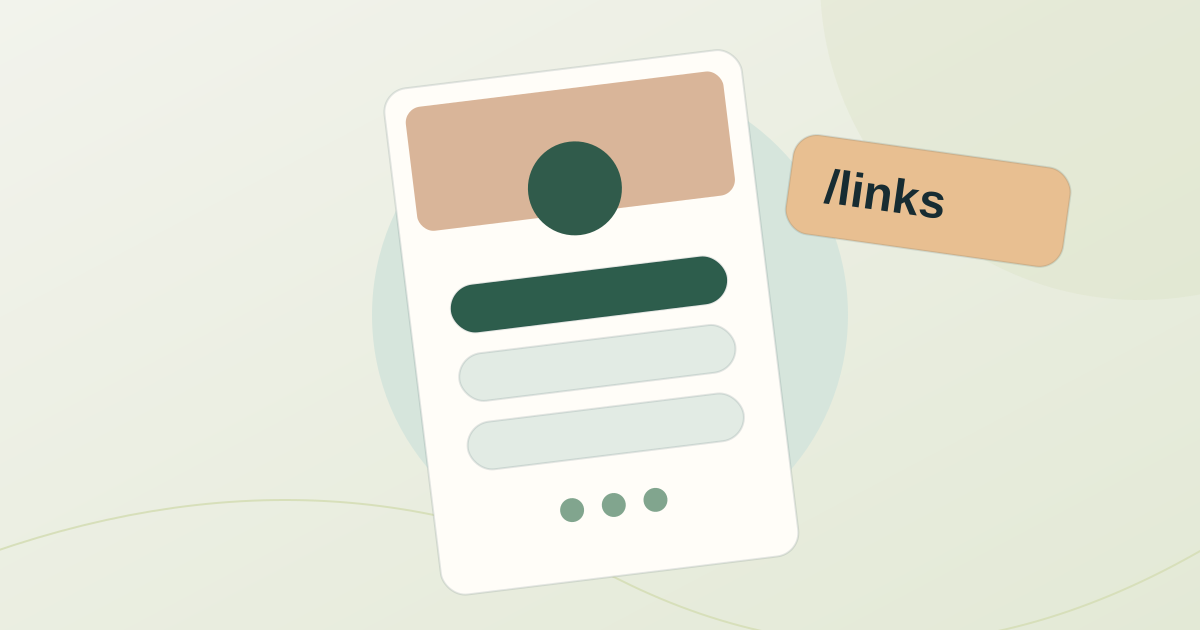
A Linktree alternative: create an ad-free link page on your own domain
Build a link-in-bio page on your domain with HTTPS, without third-party ads or separate web hosting.
Your link in bio can carry your brand
A link-in-bio page gives visitors one place to find your shop, WhatsApp, social profiles and content. That address does not have to belong to another platform. With Redirect-301 Pages, you can publish at yourdomain.com/links, over HTTPS and without third-party advertising.
Why use your own domain?
Linktree and similar tools may also be good choices. The main distinction here is hosting your link page at your own branded address; check current features and plans before comparing services.
What can you put on your page?
Combine buttons, social icons, a WhatsApp contact button, images, galleries, maps, videos and text. A shop might feature products and support; a creator can share videos and portfolios; a restaurant can show its menu and location.
A real example: Amanda Magro Store
Amanda Magro Store is a women's fashion store in Maringá, Brazil. Its online store runs on its own domain, and the bio link on its Instagram @amandamagrostore points to amandamagro.com.br/contatos: a page built with Pages, on that same domain.

How to create a Pages link page
- Open Pages in the Redirect-301 dashboard and select New page.
- Choose Creator, Realtor, Restaurant, Resume, or Blank.
- Edit the text, colors, blocks and links to match your brand.
- Publish it, then connect a custom path such as
/linksto the page; alternatively, use the 200 Page option to show a page at the domain root. - Make sure the domain DNS is correctly configured and test the HTTPS address. You can also point a QR code to the page.
Changes are saved in the editor; for a page already live, edits remain drafts until you select Publish. See the configuration guide for details.
Do you need a website or hosting?
You do not need to build a separate website or buy separate hosting just for your link page. You do need a domain and the DNS configuration shown in your dashboard. If that domain already serves a website, consider your address and DNS setup before making changes.
Pages are included in every Redirect-301 plan. You can add your Google Analytics 4 Measurement ID to track visits in your own account, subject to applicable consent requirements.
Frequently asked questions
Are third-party ads shown?
No. The page shows only your own links and content, with no third-party advertising. The footer has just a small "301" link to Redirect-301.
Can I use /links on my domain?
Yes. Point a custom path on your configured domain to the page.
Can my link page be at the root domain?
Yes. Use the 200 Page destination to serve the page at the domain root.
Can I update the links later?
Yes. Edit the page and publish without changing its address.
Your domain. Your links.
Create a branded link page with Pages in the Redirect-301 dashboard, or follow the configuration guide.
Keep reading
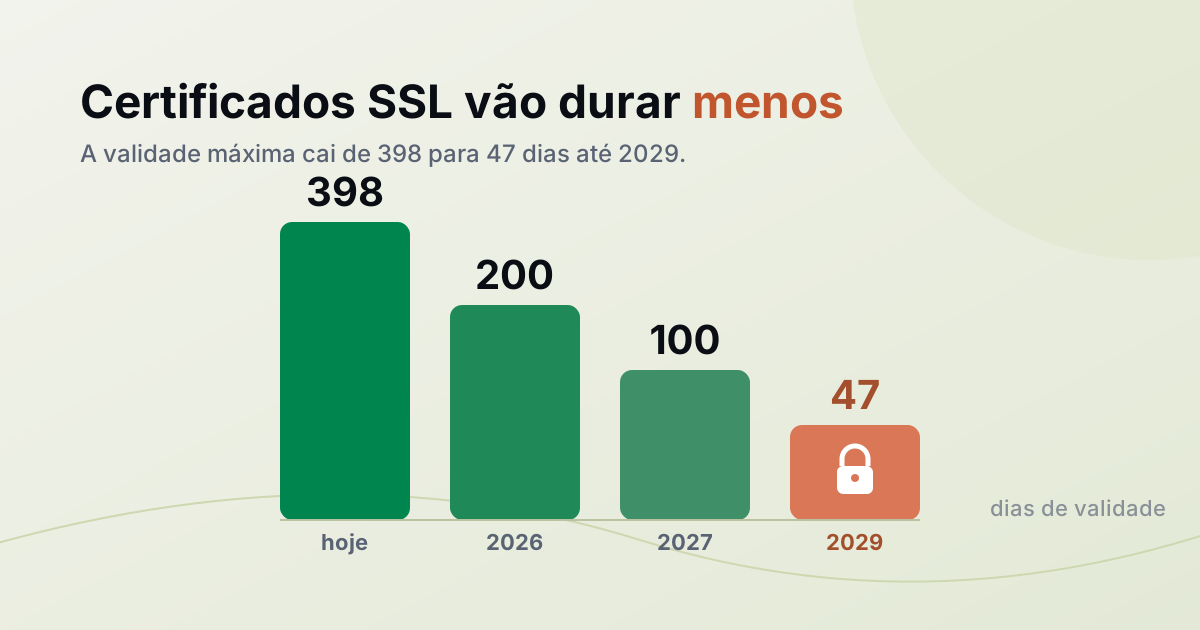
SSL certificates are getting shorter, down to 47 days. What changes for your site?
The maximum SSL certificate lifetime drops to 47 days by 2029. Here's why, what changes for your site, and why manual renewal is over.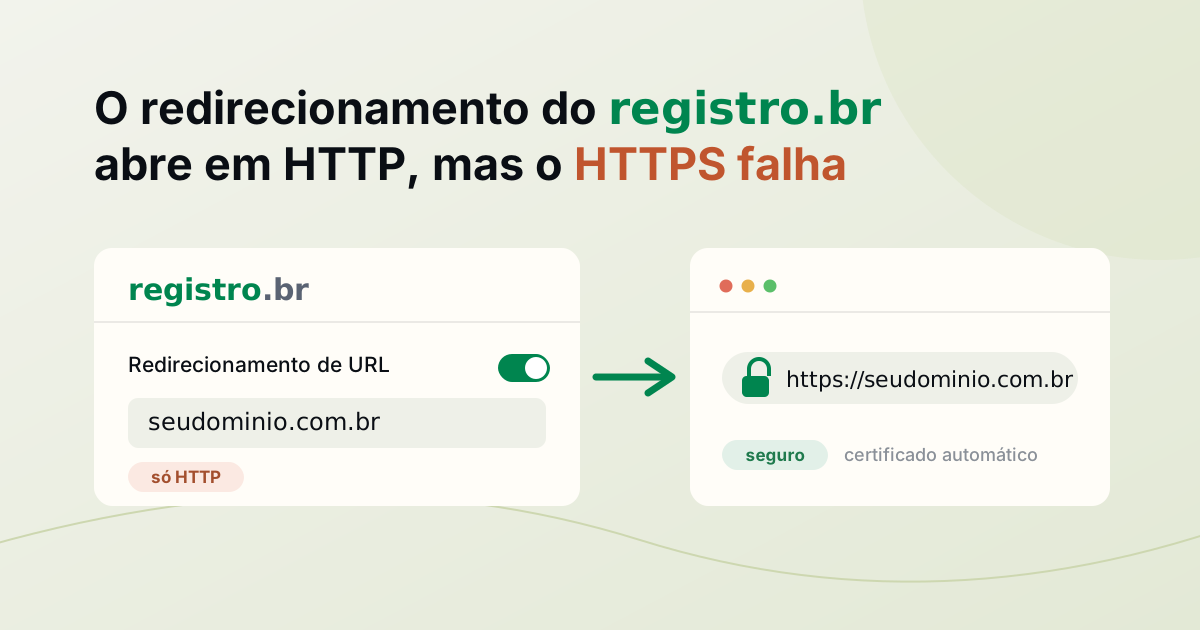
Domain forwarding has no HTTPS? Why it happens and how to fix it
Some registrar domain forwarding redirects on HTTP but fails on HTTPS. Here's why it happens and how to redirect with an automatic certificate.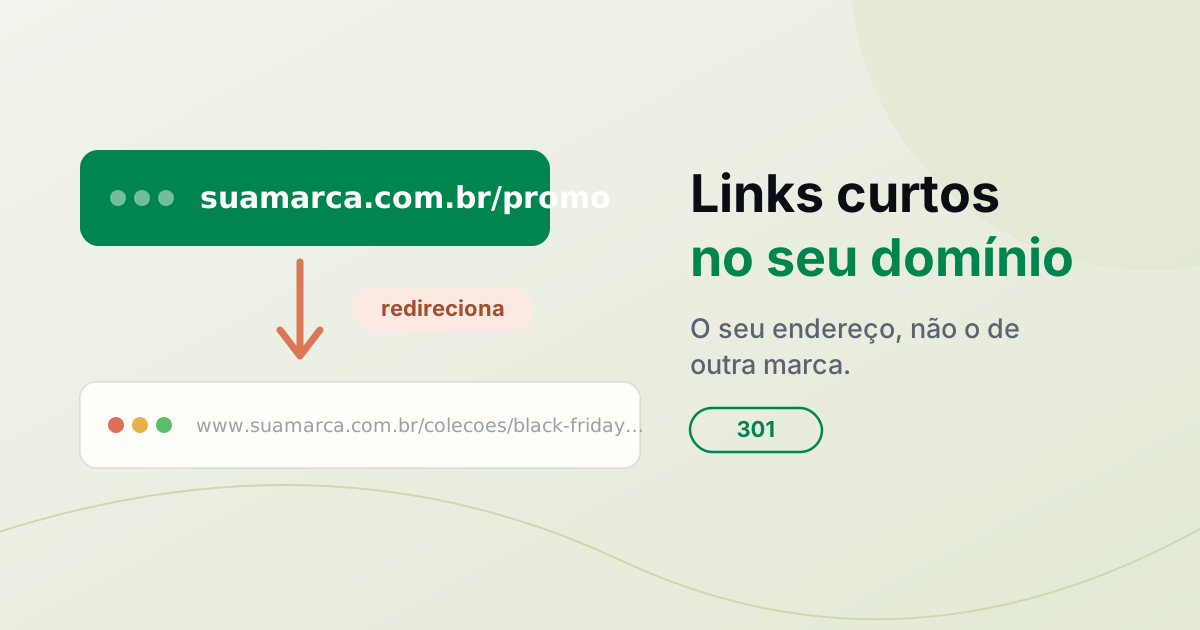
URL shortener on your own domain: how to create short links
A URL shortener on your own domain: create branded short links with HTTPS and per-link stats, and see how it differs from bit.ly.
Need help?
Feel free to reach out to us with any questions. We're here to help! Scan the QR code or click the button below to join our WhatsApp group.
Open WhatsApp →